 Yash Wate/SlashGear
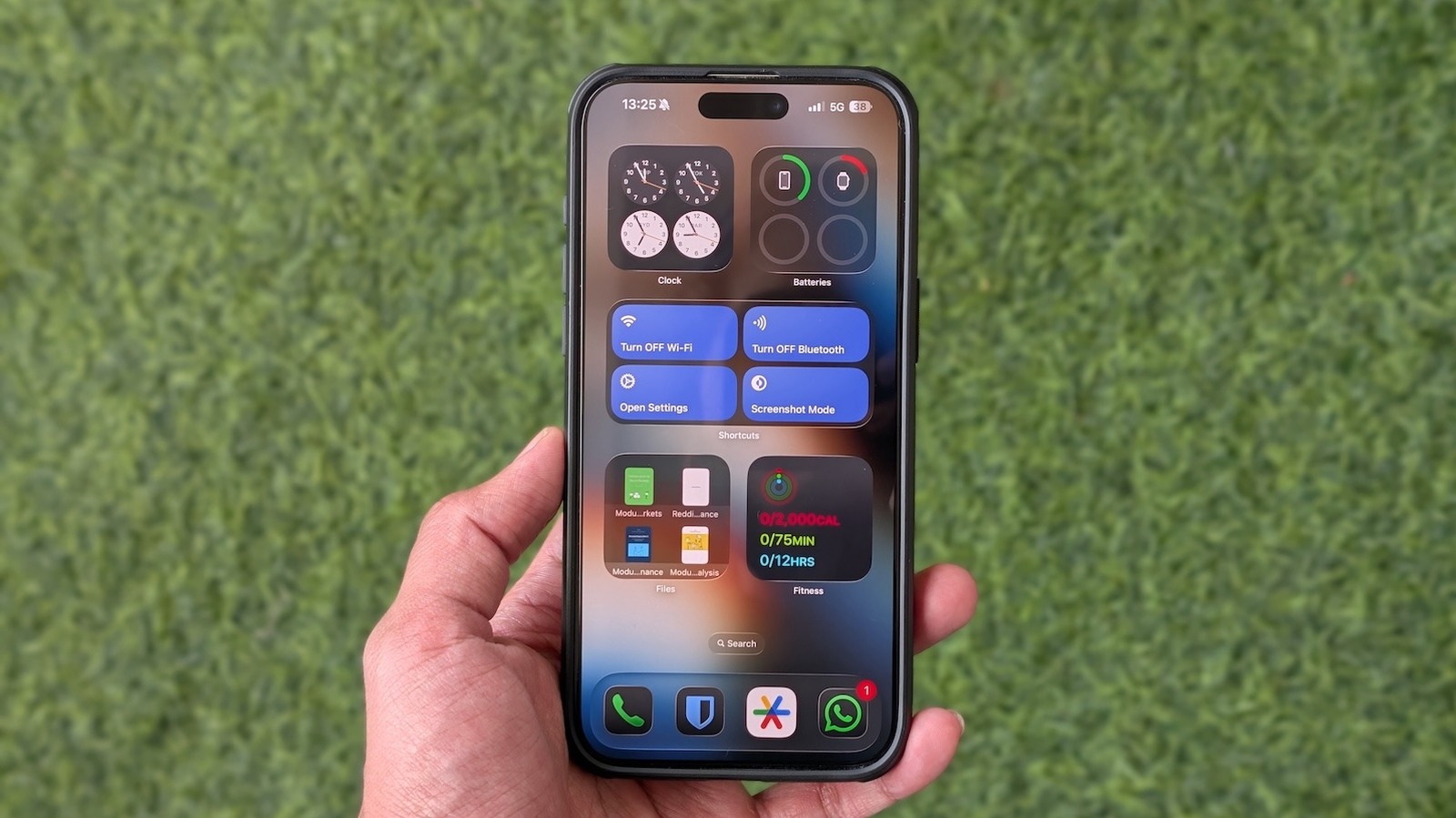
Apple introduced Home Screen widgets on iPhones with iOS 14 back in 2020. The idea was to put glanceable information from apps right on the Home Screen, saving you the time and effort of constantly opening apps. Subsequently, many third-party iPhone apps started offering Home Screen widgets. Aside from displaying information, some apps even introduced widgets with support for basic actions, such as checking off completed tasks in the case of to-do apps. Recently, with the iOS 26 update, Home Screen widgets received some notable upgrades. In addition to the new Liquid Glass treatment and new appearance options, this includes the ability to resize widgets on the Home Screen, which allows you to easily switch between different widget sizes without needing to remove and re-add them.
As an iPhone user, you may already be familiar with or using Home Screen widgets on your device. We've previously covered some of the must-have widgets for the iPhone Home Screen, which are ideal for anyone looking to get started. That said, there are many useful widgets offered by built-in iPhone apps that you may have missed or didn't bother checking out because they seemed too basic. We'll explore five such built-in iPhone widgets worth adding to your Home Screen. You can place these widgets on your Home Screen individually or create a widget stack (multiple widgets placed on top of each other) to use the screen space efficiently. In the case of the latter, you can even enable Smart Rotate, which will surface relevant widgets throughout the day based on your usage.
Batteries
 Yash Wate/SlashGear
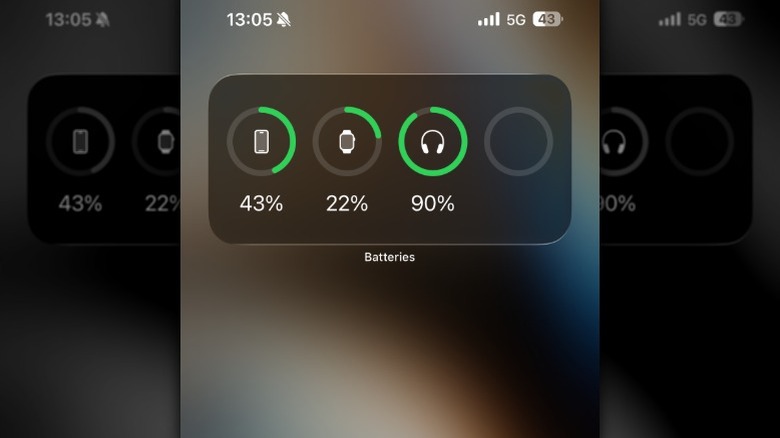
Checking the battery charge of your AirPods, non-Apple earphones/headphones, or any other accessory typically involves navigating to your iPhone's Bluetooth settings page or using a device's companion app. However, either method can feel tedious if you have to check your device's battery charge frequently. This is where the Batteries widget comes in handy. Apple offers the Batteries widget in three sizes: small, medium, and large. The small widget uses icons for device identification and shows the battery level using a ring. Similarly, the medium-sized Batteries widget also shows device icons but displays charge in percentage. Meanwhile, the large Batteries widget shows device names along with their battery charge in percentage. Generally speaking, the medium widget is a good option because it offers an easy way to check battery charge without using much screen space.
To add a Batteries widget to your iPhone Home Screen, tap and hold an empty area on the screen until the app icons start to jiggle. Hit the Edit button in the top-left corner and select Add Widget. Scroll down or use the search bar to look for the Batteries widget. Tap it. Swipe left on the widget to view the other two widgets. Tap the Add Widget button below the one you want to add. You can move the widget and place it anywhere on the screen. If you want to resize it, go into edit mode, then use the resize handle at the lower-right corner of the widget to increase or decrease its size.
Clock
 Yash Wate/SlashGear
You can check the current time on your iPhone from the Lock Screen or the status bar. But what if you live in another country away from your family or work with clients in different time zones and need to stay updated on their local time? While you can use the Clock app to do this, there's an easier and faster method that saves you multiple taps. It involves adding the Clock app widget to your iPhone Home Screen. The best part? You don't need to tap anywhere or open any app; just glance at the widget whenever you want to find out the time in a country or city.
As of the time of writing, the Clock app offers 10 widgets: four Clock widgets for checking the current time, four City widgets to display time at your selected cities, and two World Clock widgets. The one we want, though, is the World Clock widget, available in two sizes: small and medium. With the small widget, you get initials for the city in the center of the clock dial, whereas the medium widget displays the city names at the bottom of the clock. You can preview what each widget looks like before adding it to get a better idea. Once you've added your preferred World Clock widget, long-tap it and select Edit Widget. Tap on a city name and replace it with the one you want to keep time for. Do this for all the cities. Use the handle on the right of the cities to change their order of appearance.
Fitness
 Yash Wate/SlashGear
If you have an active lifestyle or are striving for one, the Fitness app is one of the best workout apps to track your fitness goals, especially if you use an Apple Watch. You can also use another tracker and sync the data with Fitness. However, not many users know that, like other Apple apps, Fitness also offers widgets, which let you check your activity or start a workout, among other things, right from your iPhone's Home Screen.
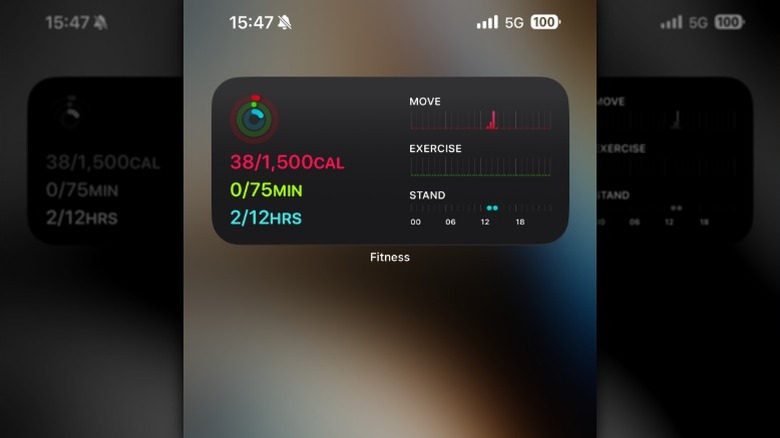
There are five Fitness widgets to choose from. These include two Activity widgets to track your daily movements, two Workout widgets to start your favorite workouts, and one Training Load widget to check your workload. We recommend adding the Activity widget, available in small and medium sizes, to track your activity throughout the day. On the small Activity widget, you see the core activity rings for your daily Move, Exercise, and Stand metrics. Meanwhile, the medium-sized widget shows the magnitude and timing for these activities along with the activity rings. At any point, you can tap a widget, and it'll take you to the respective page in the Fitness app.
Files
 Yash Wate/SlashGear
Apple bundles the Files app with iOS to simplify many file management and manipulation operations on an iPhone. For example, Files lets you scan documents, compress files, and manage files on an external drive. Similarly, you can use Files to zip and unzip files on your iPhone. Additionally, with the iOS 26 update, Apple introduced significant updates to Files — integration with the all-new Preview app, folder customization, enhanced navigation — alongside some subtle UI changes, which make it even more useful. However, there's one underrated Files app feature that many users aren't aware of or don't use: the widget that puts your recently opened files a tap away.
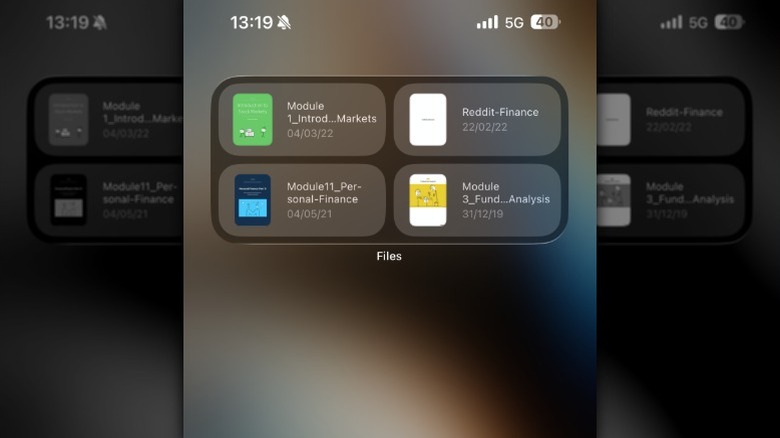
Files offers just one widget: Recents. You can choose it in a small, medium, or large size. The only difference between all three widgets is the number of files they display. While the small and medium widgets display four files at once, they approach it differently. With the small widget, you see file thumbnails along with file names, whereas the medium-sized widget also shows their last modified date. On the other hand, the large Files widget displays nine files along with their names and slightly bigger file icons. Add a Files widget per your preference. After you're done, tap a file icon in the widget, and it'll open the file in the Preview app, where you can preview, edit, or make other changes as required. If you want to view files from Downloads or another location, edit the widget and change the location.
Shortcuts
 Yash Wate/SlashGear
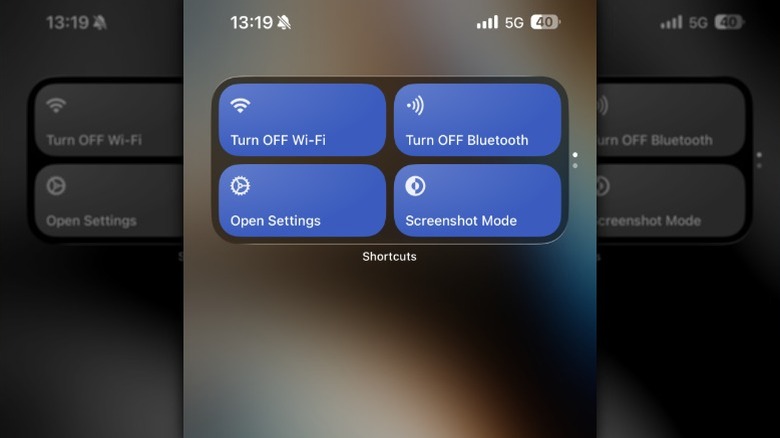
Shortcuts is an underrated iOS app that helps automate trivial actions and unlock new functionalities on your iPhone. For example, you can create shortcuts in the Shortcuts app to calculate charging time and calculate a tip. Similarly, it lets you create shortcuts to turn off Wi-Fi or Bluetooth, access system Settings, or share your Wi-Fi password, among other things. While you may be aware of Shortcuts or probably use it every day, you'll be surprised to know that it also offers a widget that provides quick access to your favorite or most used shortcuts (not automations) right on the Home Screen.
Shortcuts has four widgets. You can add a widget for one, two, four, or eight shortcuts, depending on your requirements. After you add the widget to your iPhone Home Screen, you need to configure it to display your preferred shortcut(s). To do this, long-tap the widget and select Edit Widget. Now, if it's a single shortcut widget, tap the shortcut name next to Shortcut, then find and choose the one you want to add. On the other hand, for widgets with multiple shortcuts, you'll need to select the folder. First, head to the Shortcuts app, create a folder, and move all the shortcuts you want on the widget to it. Keep the shortcuts you want to include at the top. After this, edit the widget on the Home Screen, tap All Shortcuts, and select the folder where you've saved the shortcuts you want to add.