 Harry Howitt/Shutterstock
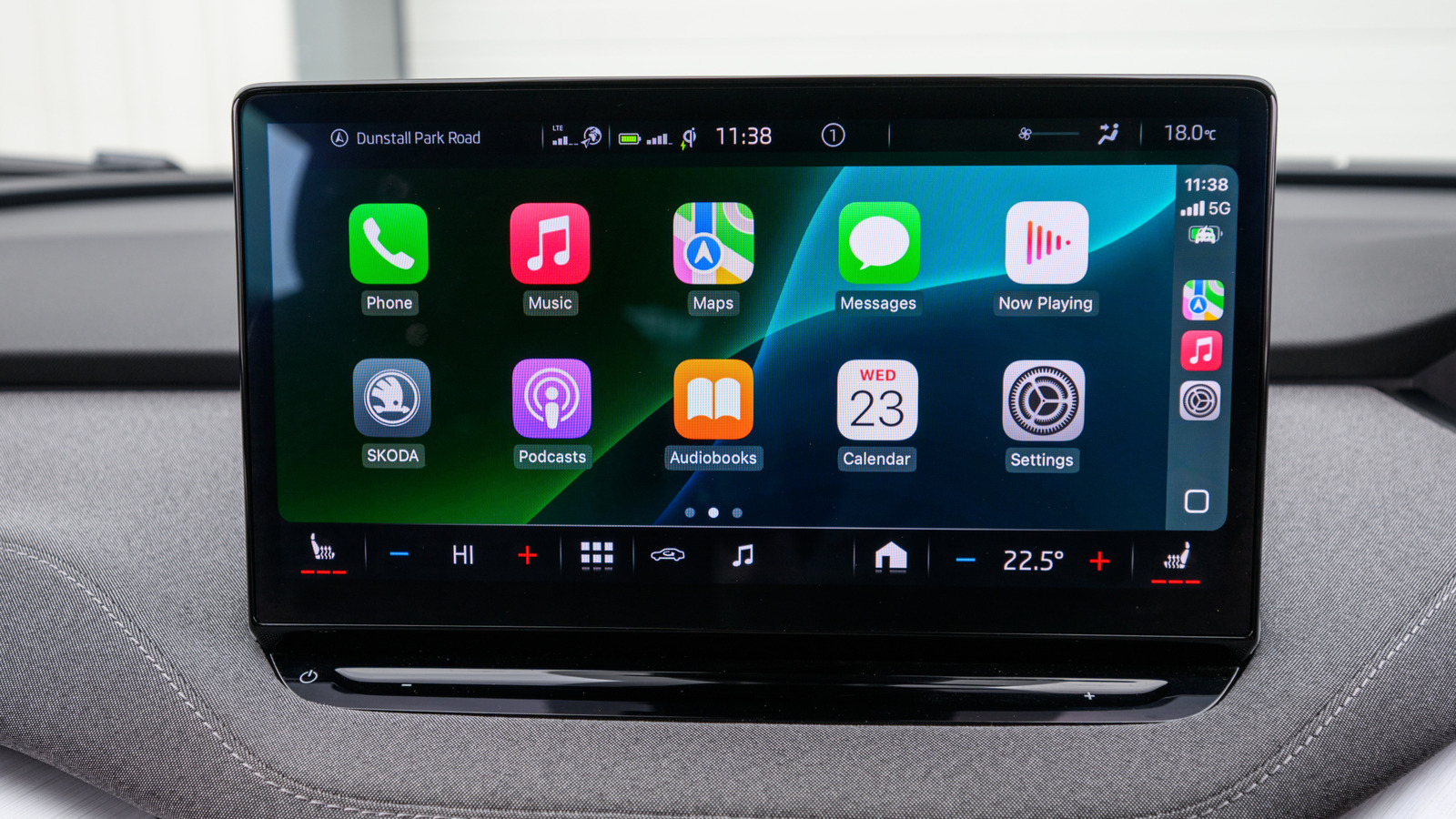
CarPlay is an easy way to use your iPhone while driving, and we've shared some pro tips to help you get the most out of your infotainment. But one tip we didn't reveal involves removing the Calendar from your CarPlay, which you can do. However, before you begin navigating your iPhone to do it, be sure you're at a full stop for your own safety.
Just go to your iPhone's General settings and select CarPlay. Then choose your car, and once you do, you'll see the apps and widgets that your CarPlay system is accessing. You should see an option to organize or remove, so just choose the latter, and select the Calendar widget or app. Removing the calendar from your CarPlay won't remove it from your iPhone, and if you decide you want it back, you can go to Customize and do it from there. But why remove it at all?
First, you'll save some physical space on your display. This can make a big difference, especially if your screen is already too crowded with apps. Plus, once the Calendar widget is removed, its notifications and upcoming event information will no longer appear on the CarPlay screen. This will help you keep your reminders and appointments private. Of course, if you don't want to remove the calendar from CarPlay, you can turn calendar notifications off on your iPhone before you drive. But remembering to turn them back on could be more of a hassle than it's worth.
How to get more display space on CarPlay
 Harry Howitt/Shutterstock
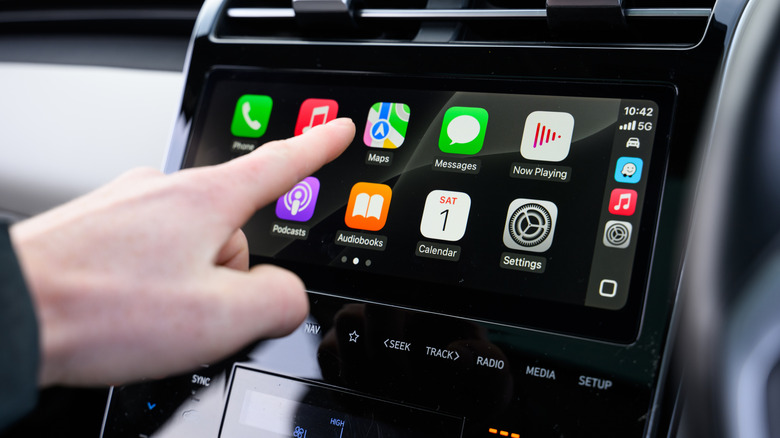
If you're concerned about display space on your CarPlay, which Tesla may finally add to its vehicles, iOS 26 has a feature that can help. It's called Smart Display Zoom. Accessed through your iPhone's settings, it allows you to adjust the size of the icons on your screen. By making the icons smaller, you can make the screen a bit less congested. Plus, depending on the size of your display, this adjustment could give you enough room to add another row of apps or widgets. Either way, you should end up with a neater and easier-to-read layout.
Apple also has some updates for CarPlay that allow you to use more widgets at once. These new widget "stacks" show three widgets side-by-side instead of the previous two. This allows you to access more important information at once, like weather, navigation, or even music controls. The other update will let you disable pinned message threads, which can free up even more display space. This helps if you're working with a smaller screen.
These updates came just months after the limited release of CarPlay Ultra, which we reviewed in July of 2025. CarPlay Ultra provides content for all screens in your car, even the instrument cluster. This means you can display iPhone apps, media, and more, as well as speed, fuel, and tire pressure information. However, CarPlay Ultra is not yet widely available, and as of this writing, Apple hasn't confirmed when it will be.