- Phones
- Android
Browse and communicate privately
When you purchase through links on our site, we may earn an affiliate commission. Here’s how it works.
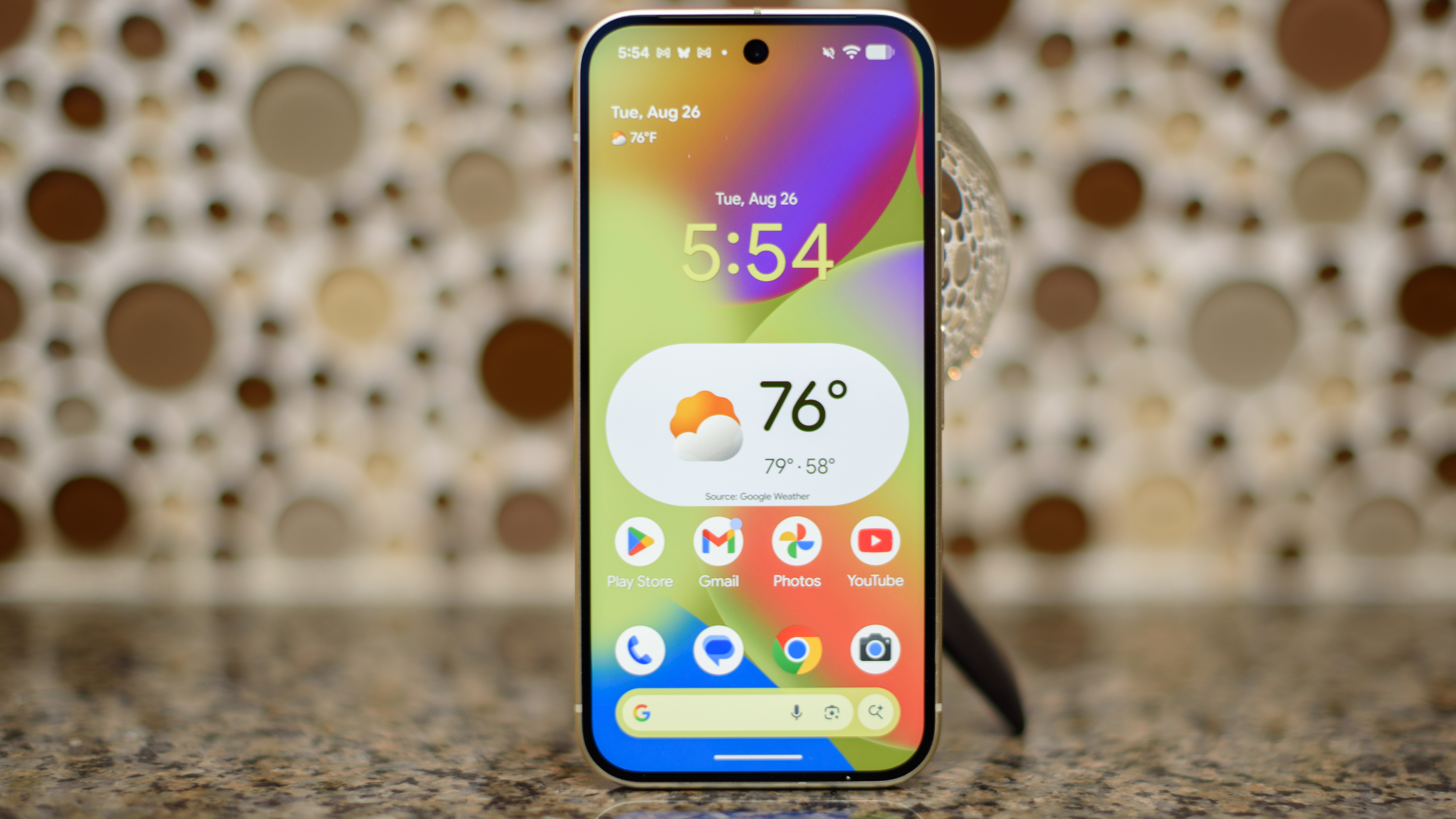 The Google Pixel 10
(Image credit: Philip Berne / Future)
Jump to:
The Google Pixel 10
(Image credit: Philip Berne / Future)
Jump to:
- Use Signal
- Revoke permissions
- Use a secure folder
- Use a VPN
- Use a privacy screen protector
- Hide notifications
- Change your browser
- Copy link
- X
- Threads
Sign up for breaking news, reviews, opinion, top tech deals, and more.
Contact me with news and offers from other Future brands Receive email from us on behalf of our trusted partners or sponsors By submitting your information you agree to the Terms & Conditions and Privacy Policy and are aged 16 or over.You are now subscribed
Your newsletter sign-up was successful
An account already exists for this email address, please log in. Subscribe to our newsletterAndroid phones and tablets are capable devices – and many of those capabilities both open you up to privacy issues, and give you ways to increase your privacy.
Apps might ask for your location, websites might capture data about your browsing habits, and people might look over your shoulder, but all of these things can be countered by tools available to you.
So below, we’ve detailed seven ways to help keep your Android device private, whether your concerns are online trackers and threats, over-shoulder snoopers, or people who have physical access to your device.
You may like-
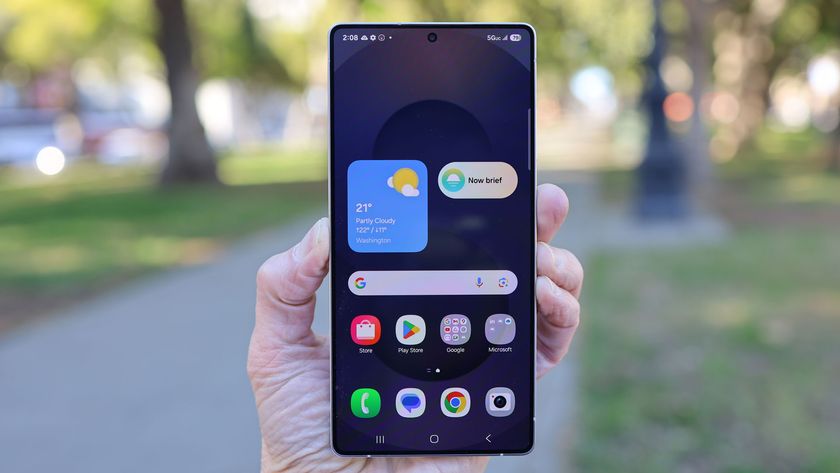 The Samsung Galaxy S26 Ultra’s privacy display could be the biggest upgrade in years – here’s how it works
-
 Your smartphone is quietly sharing your data overnight, NordVPN warns – here's how to limit it
-
 Your full software kit for ditching Big Tech in 2026
1. Communicate with Signal
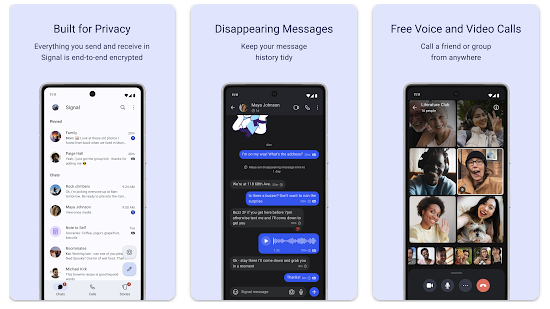
Signal’s whole deal is keeping your messages private, so if you’re worried about people or companies intercepting and reading your communications, then this is a top messaging choice.
This app uses end-to-end encryption, ensuring that even Signal itself can’t read your messages, and it promises that there are no back doors and there’s no data collection. It relies on the Signal Protocol for its encryption, which is open source and auditable, so third parties can and have verified the company’s claims.
And it’s a nonprofit organization, so it’s not subject to the whims of advertisers and investors. In short, this is about as private as messaging on Android gets.
But Signal is also a slick, full-featured messaging app, so it doesn’t feel like you’re compromising on other things to get that privacy.
Get daily insight, inspiration and deals in your inboxContact me with news and offers from other Future brandsReceive email from us on behalf of our trusted partners or sponsorsBy submitting your information you agree to the Terms & Conditions and Privacy Policy and are aged 16 or over.2. Check and limit app permissions
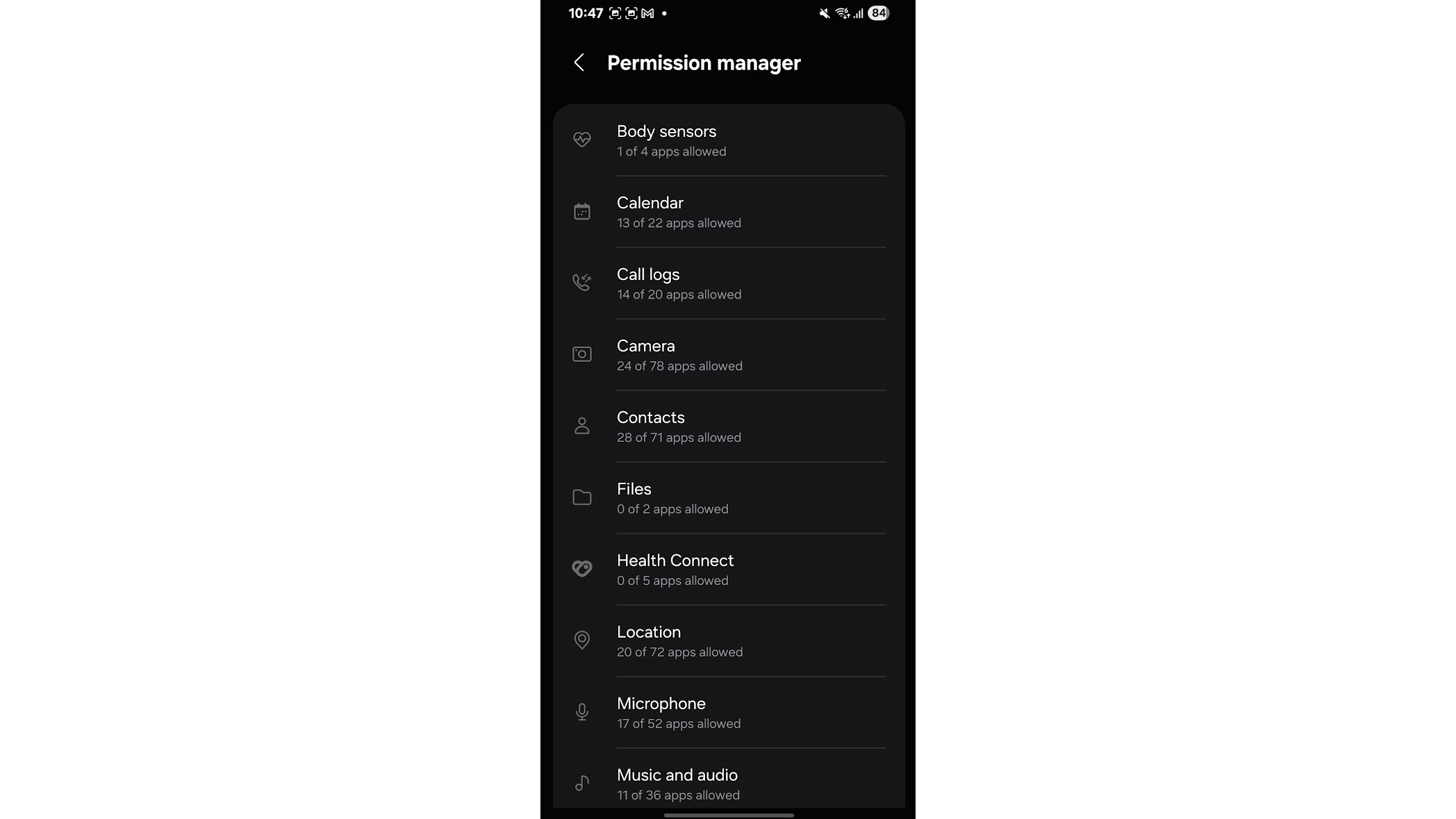
Apps have a nasty habit of asking for all sorts of permissions, some of which it can be questionable how much they need. So it’s worth being aware of what permissions your apps have access to, and revoking any permissions you don’t want them to have.
The easiest way to do this is to head to Settings > Security and Privacy > Privacy > Permission manager, where you’ll be able to see the various different things that apps could have permission to access, such as your contacts or your location. If you then tap on one of those categories you’ll see all the apps that have that permission, and if you tap on one of those apps you’ll be able to revoke the permission.
It’s worth noting that in most cases apps do genuinely need these permissions to perform some of their functions. But if you can live without those functions, don’t trust the app, or are just concerned about the privacy implications, it’s worth revoking any relevant permissions.
You may like-
Your smartphone is quietly sharing your data overnight, NordVPN warns – here's how to limit it
-
Your full software kit for ditching Big Tech in 2026
-
 Your mobile browser counts – and these three are putting your privacy at risk, warns Surfshark
Also note that the exact location of the permission manager may vary a bit depending on your phone.
3. Use private space or a secure folder
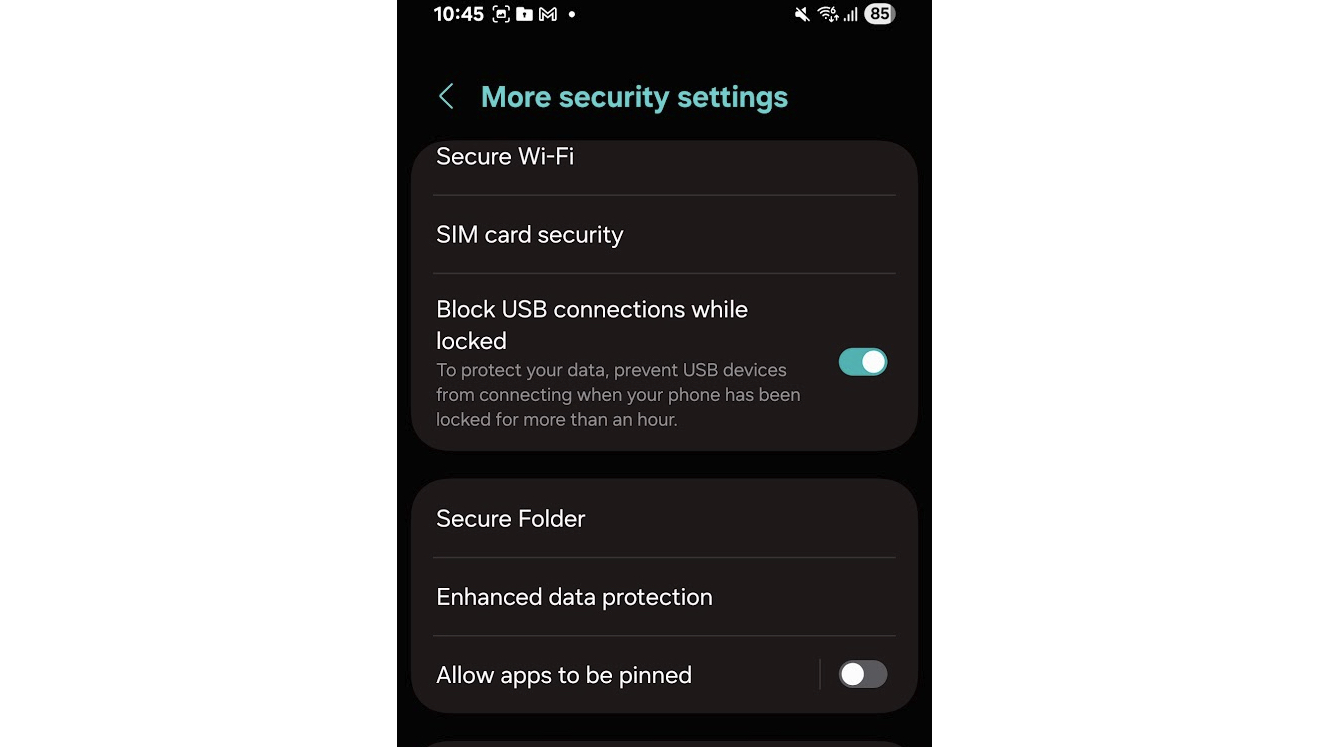
Your Android phone will almost certainly have some sort of hidden and/or locked folder that you can hide apps away in – though the exact name and functionality of this space can vary depending on your phone brand.
Still, if you ever let anyone else use your phone and have any apps that you’d rather they couldn’t access – or couldn’t even find – then it’s worth finding and using this feature.
Google’s own take on this idea is called ‘private space’, and you can activate this through Settings > Security and privacy > Private space. If you have a Samsung Galaxy phone, then you’ll instead have a Secure Folder, which you can enable through Settings > Security and privacy > More security settings > Secure Folder.
4. Use a VPN
A VPN is a major component in protecting your privacy when browsing the web, as it will hide your online activity from your ISP, and hide your IP address from websites, so if that’s an element of privacy that you worry about, then it’s worth keeping a VPN enabled.
There are lots of VPN apps available on Android, some of which are either free or cheap – though as a general rule, if the product is free, your data is the price, so given that we’re focused on privacy here, you might want to go with a paid option.
In any case, we’ve got dedicated guides to the best VPNs and the best free VPNs, and best Android VPNs.
5. Use a privacy screen protector
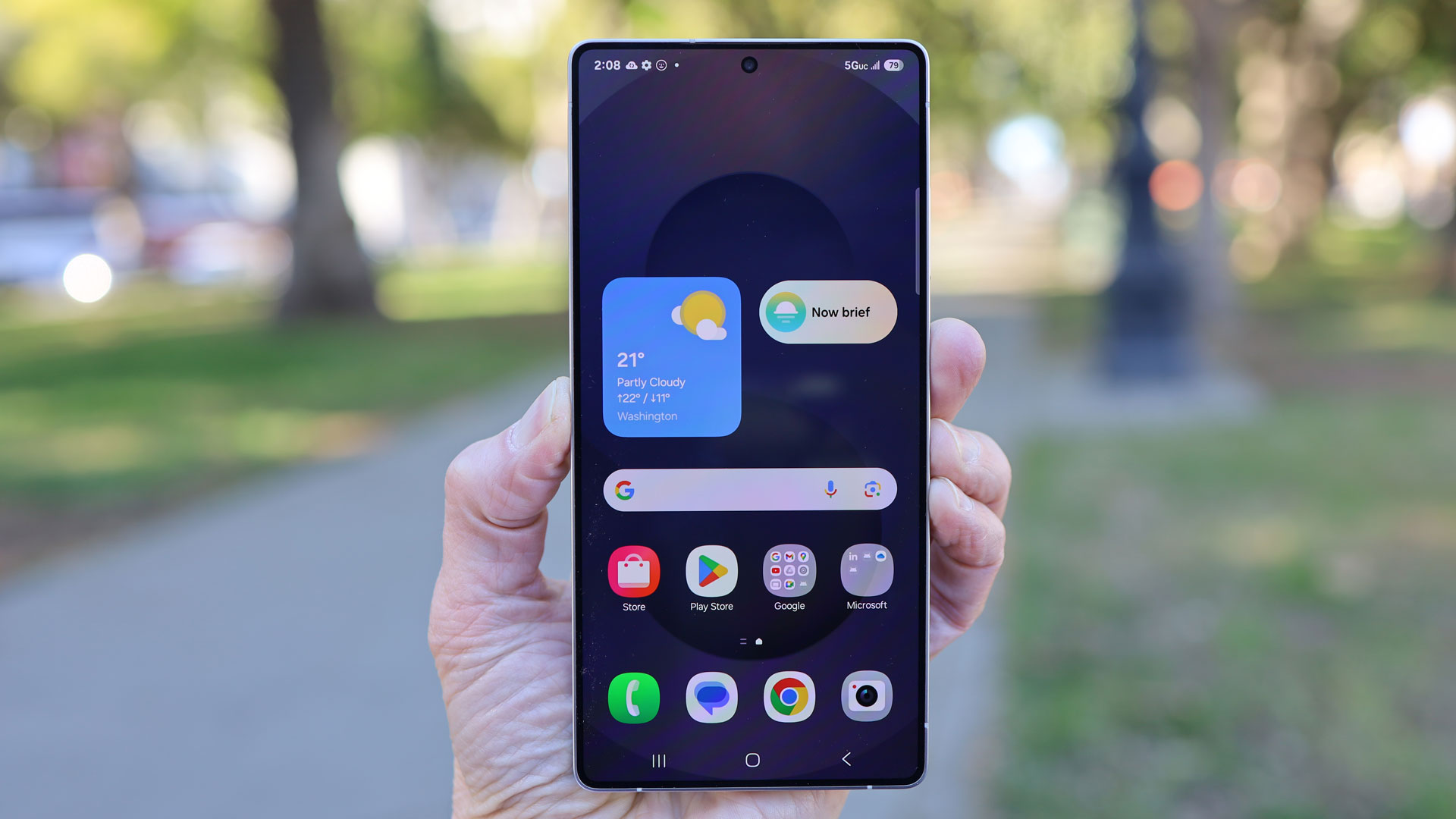
If you’re concerned about people looking over your shoulder to see what you’re doing on your phone, then you might want to invest in a privacy screen protector.
These – as well as protecting your screen from damage – also mean it’s dark when viewed side-on, so content is only visible when looking at it from the front. That means you should still be able to see the screen just fine, but anyone looking at it from an angle won’t.
There are downsides to this – it can mute the colors or make the screen appear dimmer, even for you, and if you ever want to show a group of people something on your phone, it might limit your ability to do so. But if you frequently get public transport or just have nosy family members or colleagues, then one of these could be worth considering.
In that case though, you might also be interested in the Samsung Galaxy S26 Ultra, as Samsung has heavily teased that this will feature a built-in way to stop snoopers from seeing the screen – one that’s far more customizable and without the downsides of a privacy screen protector.
6. Hide notifications from your lock screen
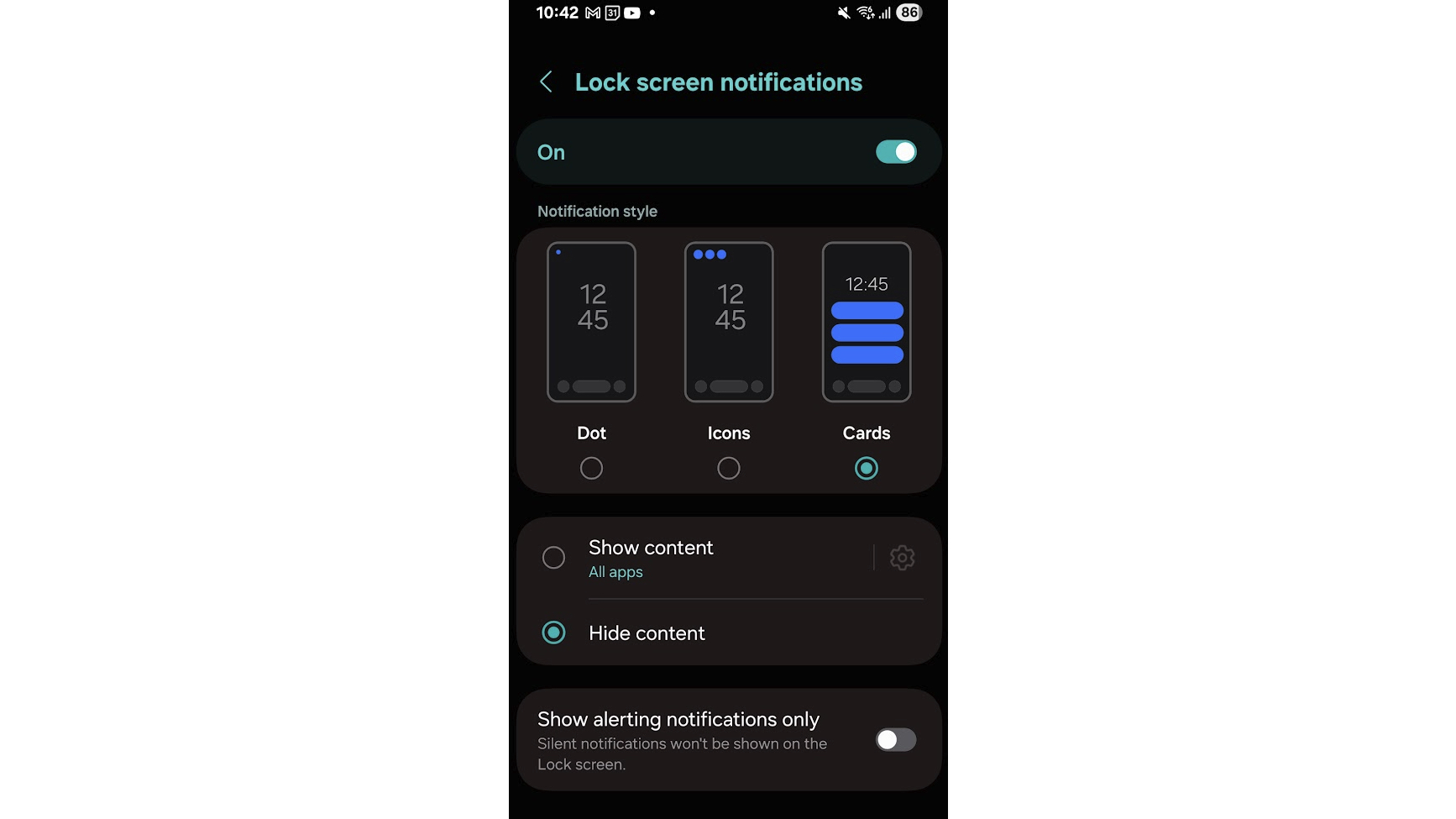
If anyone other than you is ever reading your lock screen notifications, you might want to consider hiding the content of these – or at least of some of them.
The method for doing this can vary a bit depending on your device, but to turn notifications off completely for specific apps you can head to something along the lines of Settings > Notifications > App notifications, then tap the relevant app, and disable notifications.
Alternatively, depending on your phone you might still be able to receive notifications but just hide the content. On a Samsung Galaxy for example you can do this by going Settings > Notifications > Lock screen notifications, and then tapping ‘Hide content’.
On Pixel devices, you should be able to head to Settings > App and notifications > Notifications, and then turn off ‘Sensitive notifications’.
7. Use a privacy-protecting browser
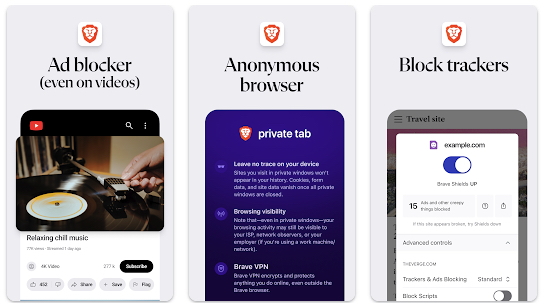
Some web browsers respect your privacy a lot more than others, so it’s worth getting one that makes your privacy a priority.
Top options include things like Brave, Vivaldi, and DuckDuckGo Private Browser. The exact features will vary a bit between them, but include things like blocking cookies, trackers, and scripts, removing tracking codes from copied URLs, and forcing sites to use an encrypted (HTTPS) connection.
In most cases you’ll have some control over exactly what you do and don’t block with these browsers, so you can configure them to your liking.
Today's best Android phone deals Samsung Galaxy S25 Ultra
 SG$1,245ViewSee all prices
 Google Pixel 10 Pro SG$1,459 SG$1,295ViewSee all prices
 Google Pixel 10 Pro XL SG$1,739 SG$1,315ViewSee all pricesWe check over 250 million products every day for the best prices
Follow TechRadar on Google News and add us as a preferred source to get our expert news, reviews, and opinion in your feeds. Make sure to click the Follow button!
And of course you can also follow TechRadar on TikTok for news, reviews, unboxings in video form, and get regular updates from us on WhatsApp too.
James RogersonSocial Links NavigationJames is a freelance phones, tablets and wearables writer and sub-editor at TechRadar. He has a love for everything ‘smart’, from watches to lights, and can often be found arguing with AI assistants or drowning in the latest apps. James also contributes to 3G.co.uk, 4G.co.uk and 5G.co.uk and has written for T3, Digital Camera World, Clarity Media and others, with work on the web, in print and on TV.
View MoreYou must confirm your public display name before commenting
Please logout and then login again, you will then be prompted to enter your display name.
Logout Back To Top Read more Your smartphone is quietly sharing your data overnight, NordVPN warns – here's how to limit it
 Your full software kit for ditching Big Tech in 2026
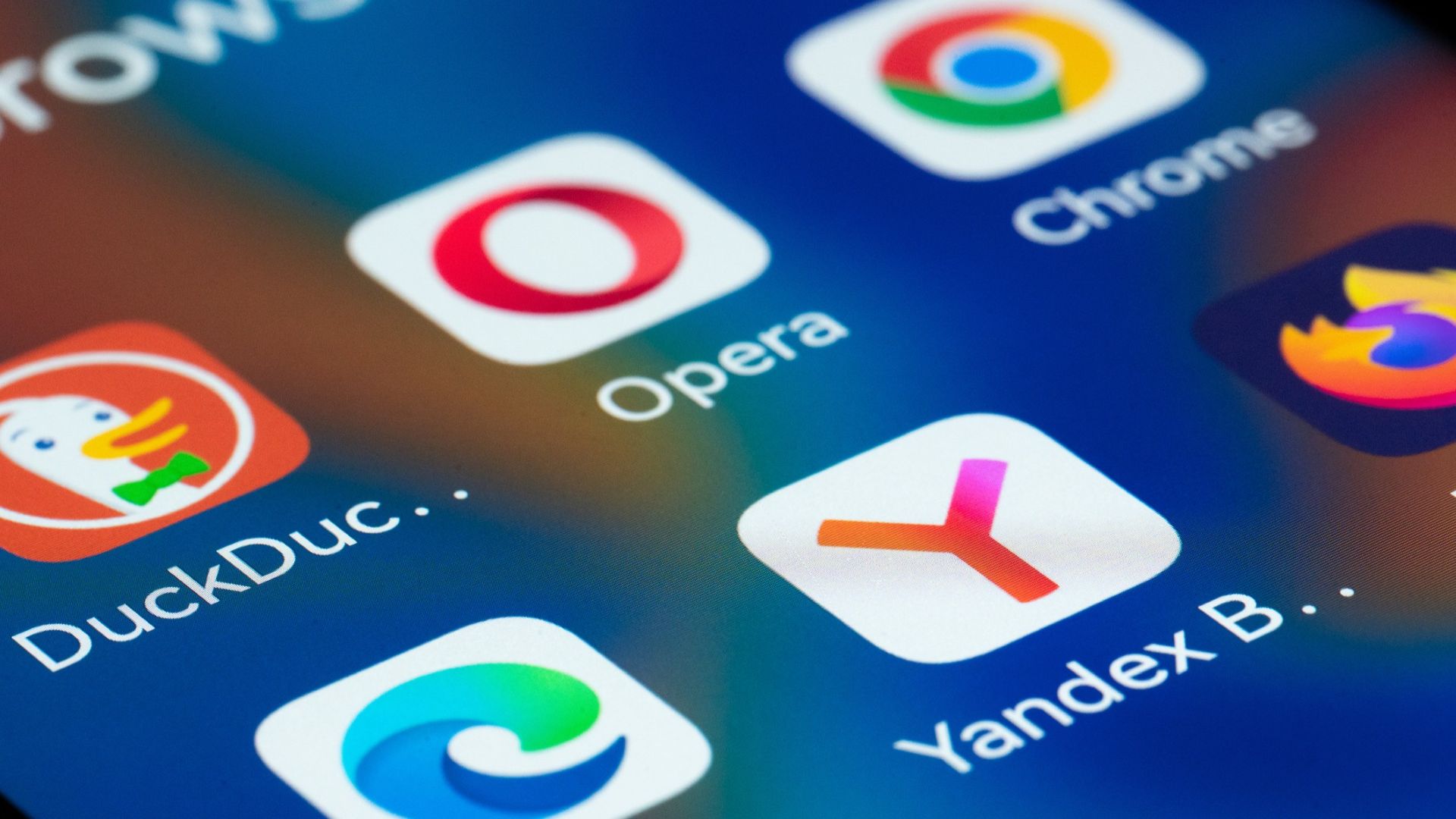 Your mobile browser counts – and these three are putting your privacy at risk, warns Surfshark
 Top cybersecurity habits to take into 2026
 Is Incognito Mode really private? Here’s the answer from cybersecurity experts – and what you should do instead
 Two new Samsung One UI 8.5 upgrades for Galaxy phones have leaked
Latest in Android
Two new Samsung One UI 8.5 upgrades for Galaxy phones have leaked
Latest in Android
 Google Pixel 10 users report broken Wi-Fi and Bluetooth
Google Clock just made it harder to sleep through your alarms
Google Pixel 10 users report broken Wi-Fi and Bluetooth
Google Clock just made it harder to sleep through your alarms
 7 great WhatsApp alternatives for Android users
 Google Messages is getting more handy tools – keep an eye out for these 3 new features
 Google Photos might soon give you more control over your backups
 Missing your Blackberry? This Android phone brings back physical keyboards
Latest in Features
Missing your Blackberry? This Android phone brings back physical keyboards
Latest in Features
 Sea of Remnants developer on building the ultimate open-world pirate playground
 IKEA exec shares the secrets behind the brand's new-and-improved donut lamp
7 privacy tips for your Android device to avoid prying eyes
IKEA exec shares the secrets behind the brand's new-and-improved donut lamp
7 privacy tips for your Android device to avoid prying eyes
 This trick will have ChatGPT and Gemini get straight to the point
 I love DLSS 4.5, but I’m worried that it could actually be bad news for gaming – here’s why
 Huge iPhone Fold leak teases some big differences to the Galaxy Z Fold 7
LATEST ARTICLES
Huge iPhone Fold leak teases some big differences to the Galaxy Z Fold 7
LATEST ARTICLES- 1Can you cook eggs with an espresso machine? 5 steam wand hacks tried and tested
- 2'Companies that are not set up to quickly adopt AI workers will be at a huge disadvantage': OpenAI Sam Altman warns firms not to fall behind on AI - but notes 'it’s going to take a lot of work and some risk'
- 3A next-gen Xbox could be here in 2027, but Microsoft's in a rough spot
- 4Bridgerton season 4 part 2 teaser teases iconic bathtub scene, but at a cost
- 5Exclusive: Disney+ just added We Call It Imagineering, with new episodes on the way